How to run an OnlyFans & Fansly inbox when you have 300 open chats
Every agency hits the same wall. A model grows, the inbox fills up with “hi”, “hey babe” and real buyers all mixed together, and a chatter starts the shift by scrolling. The money is in there, but it is buried. This guide covers how to organise a busy inbox so chatters spend their hours on fans who pay, and how Leeward Chat in Leeward is built for exactly that.
Why “newest first” loses money
The default inbox on most platforms sorts conversations by the last message. That works for ten chats. At three hundred it turns into a lottery: a fan who has spent a lot with the model writes once, gets pushed down by twenty new “hi” messages, and waits an hour. Some of those fans don’t wait. They go quiet, or they go to another creator.
The second problem is context. A chatter opens a conversation and has no idea who this person is. Did he buy the last PPV? When does his subscription end? Did a colleague on the night shift promise him something? Without that, the chatter either asks again, which feels cold to the fan, or guesses, which loses sales.
So a busy inbox needs two things: an order that puts likely buyers first, and the fan’s history right next to the conversation.
How Leeward Chat orders the inbox
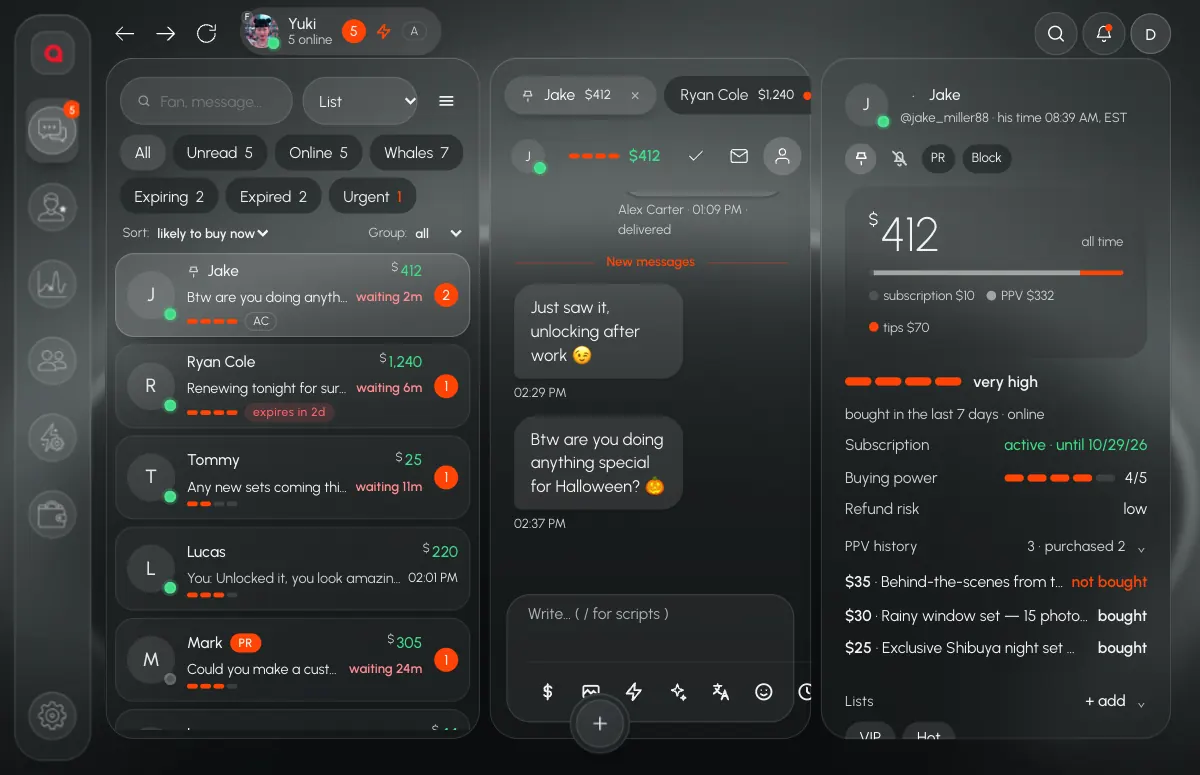
Leeward Chat is the chat client inside Leeward. Its default sort is likely to buy now. Fans who spend, who are online and who are waiting for a reply rise to the top, and each one shows a short reason why. The order also stays still while the chatter’s cursor is over the list, so a row doesn’t jump away at the moment someone clicks it.
Every fan in the list shows how long they have been waiting and what they have spent. A chatter can see at a glance that one fan with a high lifetime spend has been waiting eight minutes, while the newest message is from someone who has never bought anything.
Filters that match the job
Sorting decides the order. Filters decide what you look at. Leeward Chat has one-click filters for Unread, Online, Whales, Expiring, Expired and Urgent. Each one answers a question a chatter actually asks during a shift:
- Online: who can buy right now, while they are looking at the phone.
- Whales: the small group of fans who bring most of the money. They should never wait.
- Expiring and Expired: fans about to leave or already gone. A warm message before renewal is cheaper than winning someone back later.
- Urgent: conversations marked as needing a fast answer, for example a custom request.
The fan card beside the chat
Next to every conversation sits the fan card: lifetime spend, PPV history with bought and not bought, the subscription end date, lists like VIP and Hot, and notes from the team. Notes are shared, so what the morning chatter learned is there for the night chatter. The fan never has to repeat himself.
Tabs, PPV, scripts and the translator
Each open fan becomes a tab with his spend on it, so a chatter working ten conversations at once can see where the money is. PPV goes out from the vault without leaving the chat, and a warning shows if this media was already sent to this fan. Scripts come up when the chatter types “/”, and longer scripts can be followed step by step. A half-written draft survives a restart of the app. If fans write in other languages, the built-in translator helps, see our guide to the chat translator.
Split one model’s inbox between chatters
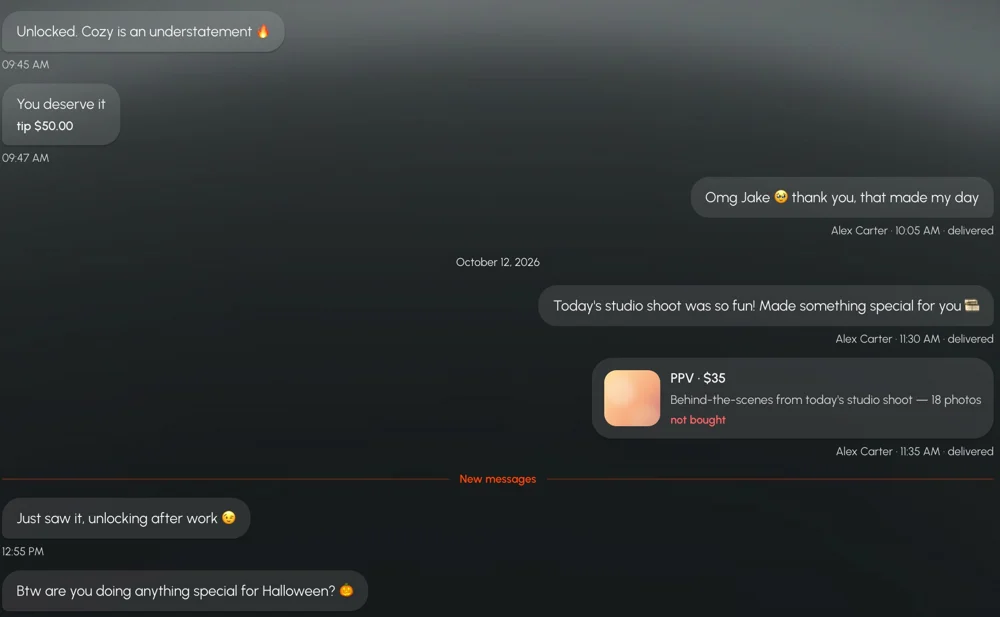
When one model has more chats than one person can handle, Split Inbox divides her inbox into 2 to 9 parts. Each chatter works their own part, and two people never answer the same fan at the same time.
A practical routine for a busy shift
Software helps only if the team uses it the same way. Here is a routine that works for most agencies:
- Start with Online and Whales. The first ten minutes of a shift go to fans who can buy right now and fans who matter most. Answer them before anything else.
- Then work the default sort. Go down the “likely to buy now” list and watch the waiting time. Set a team rule, for example that no paying fan waits longer than a few minutes.
- Read the fan card before you sell. Check what he bought and what he skipped. Don’t send the same PPV twice, and don’t open with a price to someone who refused the last three offers.
- Leave a note after every real conversation. One line is enough: his name, what he likes, what was promised. The next chatter will thank you, and so will the fan.
- Check Expiring once per shift. A short personal message before the subscription ends keeps more fans than any mass message.
- Use scripts for structure, not for copy-paste. Keep a few proven openers and PPV offers under “/”, then adjust them to the conversation.
- Split the inbox when the queue grows. If waiting times keep rising, add a second chatter to the same model with Split Inbox instead of asking one person to type faster.
What the owner gets out of it
A sorted inbox is not only about chatter comfort. When buyers come first, the same team on the same shift sends more PPV to people who actually open it. And because every chat runs inside Leeward, you can see it happen: who is on shift, who is keeping fans waiting and how many PPV went out and sold. We cover that side in how to monitor chatters in real time.
Leeward works with OnlyFans and Fansly in one desktop app for macOS and Windows. A few chat features exist only for Fansly: marking a conversation read or unread and scheduling a message that cancels itself if the fan replies first. Plans are per model, see pricing.
Every model you connect starts with a 7-day free trial. Download Leeward, connect one model and run one shift with the inbox sorted by likely to buy now.